Physical Address
304 North Cardinal St.
Dorchester Center, MA 02124
Physical Address
304 North Cardinal St.
Dorchester Center, MA 02124

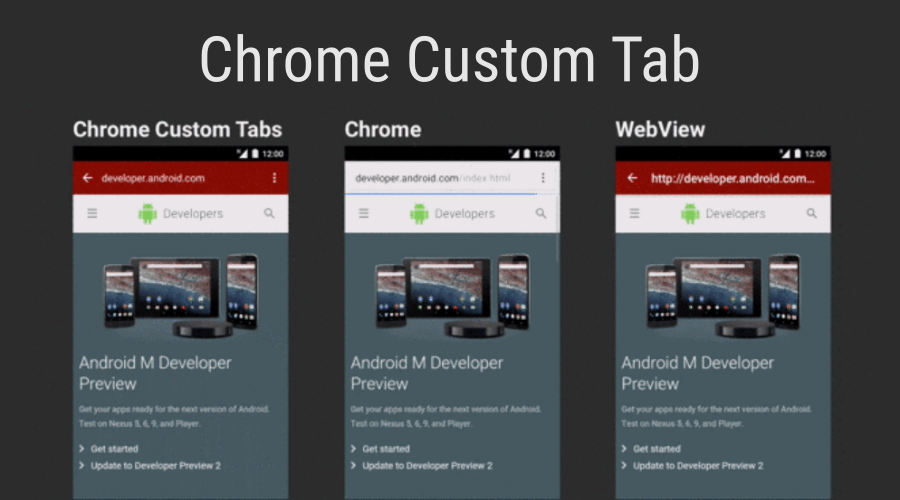
Tutorial Pemrograman Android: Menggunakan Library Chrome Custom Tab – Banyak user mengeluh dengan performance aplikasi yang ada di playstore, user memandang banyak aplikasi sampah yang ada di playstore. Banyak kemungkinan kenapa aplikasi yang ada di android mengalami kinerja yang gak maksimal terutama webview. Webview merupakan widget yang digunakan untuk menampung layout bahasa web seperti HTML atau URL secara langsung.
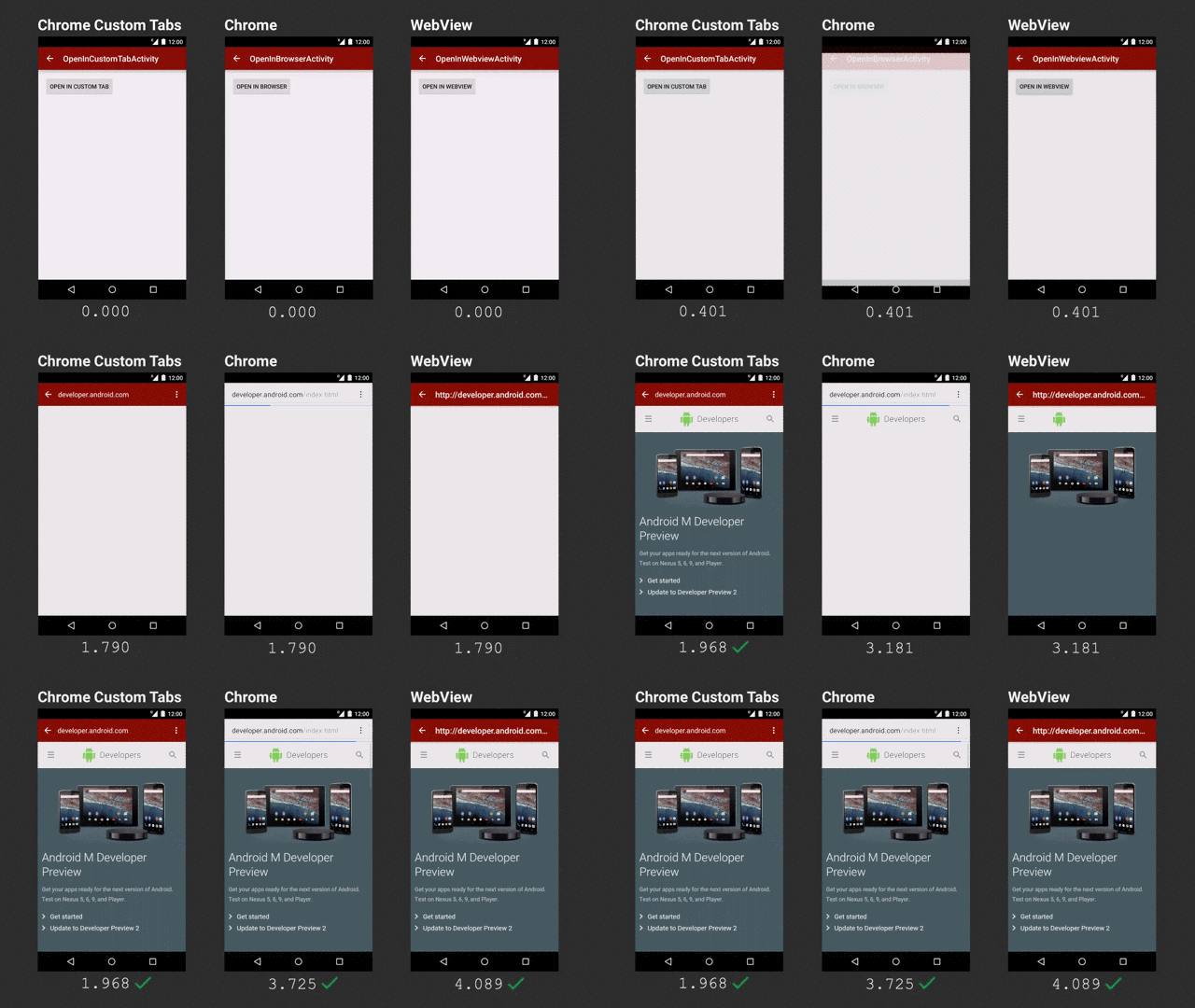
Gambar diatas merupakan perbedaan atau selisih pada saat melakukan process membaca webview. sedangkan dibawah ini perbedaan sintak menggunakan webview custom chrome dengan default webview.
CustomTabsIntent customTabsIntent = new CustomTabsIntent.Builder().build();
                CustomTabActivityHelper.openCustomTab(
                        MainActivity.this, customTabsIntent, Uri.parse("http://chromplex.com"), new WebviewFallback());
mWebview.loadUrl("http://chromeplex.com");
        setContentView(mWebview);
Tutorial berikut merupakan contoh untuk mengakses runtime permission pada kamera dan kalender:

// Copyright 2015 Google Inc. All Rights Reserved.
//
// Licensed under the Apache License, Version 2.0 (the "License");
// you may not use this file except in compliance with the License.
// You may obtain a copy of the License at
//
//     http://www.apache.org/licenses/LICENSE-2.0
//
// Unless required by applicable law or agreed to in writing, software
// distributed under the License is distributed on an "AS IS" BASIS,
// WITHOUT WARRANTIES OR CONDITIONS OF ANY KIND, either express or implied.
// See the License for the specific language governing permissions and
// limitations under the License.
package com.necisstudio.chromplexcustomchrometab;

import android.app.Activity;
import android.content.Intent;
import android.net.Uri;

/**
 * A Fallback that opens a Webview when Custom Tabs is not available
 */
public class WebviewFallback implements CustomTabActivityHelper.CustomTabFallback {
    @Override
    public void openUri(Activity activity, Uri uri) {
        Intent intent = new Intent(activity, WebviewActivity.class);
        intent.putExtra(WebviewActivity.EXTRA_URL, uri.toString());
        activity.startActivity(intent);
    }
}
class tersebut digunakan untuk management membuka class WebViewActivity menggunakan intent.
// Copyright 2015 Google Inc. All Rights Reserved.
//
// Licensed under the Apache License, Version 2.0 (the "License");
// you may not use this file except in compliance with the License.
// You may obtain a copy of the License at
//
//     http://www.apache.org/licenses/LICENSE-2.0
//
// Unless required by applicable law or agreed to in writing, software
// distributed under the License is distributed on an "AS IS" BASIS,
// WITHOUT WARRANTIES OR CONDITIONS OF ANY KIND, either express or implied.
// See the License for the specific language governing permissions and
// limitations under the License.
package com.necisstudio.chromplexcustomchrometab;

import android.app.Activity;
import android.content.ComponentName;
import android.net.Uri;
import android.os.Bundle;
import android.support.customtabs.CustomTabsClient;
import android.support.customtabs.CustomTabsIntent;
import android.support.customtabs.CustomTabsServiceConnection;
import android.support.customtabs.CustomTabsSession;

import org.chromium.customtabsclient.shared.CustomTabsHelper;

import java.util.List;

/**
 * This is a helper class to manage the connection to the Custom Tabs Service and
 */
public class CustomTabActivityHelper {
    private CustomTabsSession mCustomTabsSession;
    private CustomTabsClient mClient;
    private CustomTabsServiceConnection mConnection;
    private ConnectionCallback mConnectionCallback;

    /**
     * Opens the URL on a Custom Tab if possible. Otherwise fallsback to opening it on a WebView
     *
     * @param activity The host activity
     * @param customTabsIntent a CustomTabsIntent to be used if Custom Tabs is available
     * @param uri the Uri to be opened
     * @param fallback a CustomTabFallback to be used if Custom Tabs is not available
     */
    public static void openCustomTab(Activity activity,
                                     CustomTabsIntent customTabsIntent,
                                     Uri uri,
                                     CustomTabFallback fallback) {
        String packageName = CustomTabsHelper.getPackageNameToUse(activity);

        //If we cant find a package name, it means theres no browser that supports
        //Chrome Custom Tabs installed. So, we fallback to the webview
        if (packageName == null) {
            if (fallback != null) {
                fallback.openUri(activity, uri);
            }
        } else {
            customTabsIntent.intent.setPackage(packageName);
            customTabsIntent.launchUrl(activity, uri);
        }
    }

    /**
     * Unbinds the Activity from the Custom Tabs Service
     * @param activity the activity that is connected to the service
     */
    public void unbindCustomTabsService(Activity activity) {
        if (mConnection == null) return;
        activity.unbindService(mConnection);
        mClient = null;
        mCustomTabsSession = null;
    }

    /**
     * Creates or retrieves an exiting CustomTabsSession
     *
     * @return a CustomTabsSession
     */
    public CustomTabsSession getSession() {
        if (mClient == null) {
            mCustomTabsSession = null;
        } else if (mCustomTabsSession == null) {
            mCustomTabsSession = mClient.newSession(null);
        }
        return mCustomTabsSession;
    }

    /**
     * Register a Callback to be called when connected or disconnected from the Custom Tabs Service
     * @param connectionCallback
     */
    public void setConnectionCallback(ConnectionCallback connectionCallback) {
        this.mConnectionCallback = connectionCallback;
    }

    /**
     * Binds the Activity to the Custom Tabs Service
     * @param activity the activity to be binded to the service
     */
    public void bindCustomTabsService(Activity activity) {
        if (mClient != null) return;

        String packageName = CustomTabsHelper.getPackageNameToUse(activity);
        if (packageName == null) return;
        mConnection = new CustomTabsServiceConnection() {
            @Override
            public void onCustomTabsServiceConnected(ComponentName name, CustomTabsClient client) {
                mClient = client;
                mClient.warmup(0L);
                if (mConnectionCallback != null) mConnectionCallback.onCustomTabsConnected();
                //Initialize a session as soon as possible.
                getSession();
            }

            @Override
            public void onServiceDisconnected(ComponentName name) {
                mClient = null;
                if (mConnectionCallback != null) mConnectionCallback.onCustomTabsDisconnected();
            }
        };
        CustomTabsClient.bindCustomTabsService(activity, packageName, mConnection);
    }

    /**
     * @see {@link CustomTabsSession#mayLaunchUrl(Uri, Bundle, List)}
     * @return true if call to mayLaunchUrl was accepted
     */
    public boolean mayLaunchUrl(Uri uri, Bundle extras, List<Bundle> otherLikelyBundles) {
        if (mClient == null) return false;

        CustomTabsSession session = getSession();
        if (session == null) return false;

        return session.mayLaunchUrl(uri, extras, otherLikelyBundles);
    }

    /**
     * A Callback for when the service is connected or disconnected. Use those callbacks to
     * handle UI changes when the service is connected or disconnected
     */
    public interface ConnectionCallback {
        /**
         * Called when the service is connected
         */
        void onCustomTabsConnected();

        /**
         * Called when the service is disconnected
         */
        void onCustomTabsDisconnected();
    }

    /**
     * To be used as a fallback to open the Uri when Custom Tabs is not available
     */
    public interface CustomTabFallback {
        /**
         *
         * @param activity The Activity that wants to open the Uri
         * @param uri The uri to be opened by the fallback
         */
        void openUri(Activity activity, Uri uri);
    }

}
class diatas digunakan untuk manage connection dan open chrome custom webview
public void onClick(View v) {
                String url = mUrlEditText.getText().toString();
                CustomTabsIntent customTabsIntent = new CustomTabsIntent.Builder().build();
                CustomTabActivityHelper.openCustomTab(
                        MainActivity.this, customTabsIntent, Uri.parse(url), new WebviewFallback());
            }
Manifest.xml
<?xml version="1.0" encoding="utf-8"?>
<manifest xmlns:android="http://schemas.android.com/apk/res/android"
    package="com.necisstudio.chromplexcustomchrometab" >

    <uses-permission android:name="android.permission.INTERNET" />
    <application
        android:allowBackup="true"
        android:icon="@mipmap/ic_launcher"
        android:label="@string/app_name"
        android:supportsRtl="true"
        android:theme="@style/AppTheme" >
        <activity
            android:name=".MainActivity"
            android:label="@string/app_name"
            android:theme="@style/AppTheme.NoActionBar" >
            <intent-filter>
                <action android:name="android.intent.action.MAIN" />

                <category android:name="android.intent.category.LAUNCHER" />
            </intent-filter>
        </activity>
        <activity android:name=".WebviewActivity"
            android:screenOrientation="portrait"/>
    </application>

</manifest>
MainActivity.java
package com.necisstudio.chromplexcustomchrometab;

import android.net.Uri;
import android.os.Bundle;
import android.support.design.widget.FloatingActionButton;
import android.support.design.widget.Snackbar;
import android.support.v7.app.AppCompatActivity;
import android.support.v7.widget.Toolbar;
import android.support.customtabs.CustomTabsIntent;
import android.view.View;
import android.view.Menu;
import android.view.MenuItem;
import android.widget.EditText;

public class MainActivity extends AppCompatActivity {
    private EditText mUrlEditText;
    @Override
    protected void onCreate(Bundle savedInstanceState) {
        super.onCreate(savedInstanceState);
        setContentView(R.layout.activity_main);
        Toolbar toolbar = (Toolbar) findViewById(R.id.toolbar);
        setSupportActionBar(toolbar);

        FloatingActionButton fab = (FloatingActionButton) findViewById(R.id.fab);
        fab.setOnClickListener(new View.OnClickListener() {
            @Override
            public void onClick(View view) {
                Snackbar.make(view, "Replace with your own action", Snackbar.LENGTH_LONG)
                        .setAction("Action", null).show();
            }
        });

        findViewById(R.id.start_custom_tab).setOnClickListener(new View.OnClickListener() {
            @Override
            public void onClick(View v) {
                String url = mUrlEditText.getText().toString();
                CustomTabsIntent customTabsIntent = new CustomTabsIntent.Builder().build();
                CustomTabActivityHelper.openCustomTab(
                        MainActivity.this, customTabsIntent, Uri.parse(url), new WebviewFallback());
            }
        });

        mUrlEditText = (EditText)findViewById(R.id.url);
    }


}
mainactivity.xml
<?xml version="1.0" encoding="utf-8"?>
<LinearLayout xmlns:android="http://schemas.android.com/apk/res/android"
    xmlns:app="http://schemas.android.com/apk/res-auto"
    xmlns:tools="http://schemas.android.com/tools"
    android:layout_width="match_parent"
    android:layout_height="match_parent"
    app:layout_behavior="@string/appbar_scrolling_view_behavior"
    tools:context=".MainActivity"
    android:orientation="vertical"
    tools:showIn="@layout/activity_main">

        <EditText
            android:id="@+id/url"
            android:layout_width="fill_parent"
            android:layout_height="wrap_content"
            android:inputType="textUri"
            android:text="http://chromplex.com/"
            android:padding="20dp"/>

        <Button
            android:id="@+id/start_custom_tab"
            android:layout_width="wrap_content"
            android:layout_height="wrap_content"
            android:layout_gravity="center_horizontal|bottom"
            android:layout_marginTop="16dp"
            android:text="Open Custom Chrome" />

</LinearLayout>


Get Source Code On

Reference :




really ! good tutorial 🙂 thanks
[…] Read More […]